
Updated 8/25/17 by Alyssa.
This version walks you through processing feedbacks beginning to end, including delivery to student.
Software / Sites needed
Bench Test Feedback board in Trello is where new feedbacks come in.
To view student’s previous work, find student’s name here. If it’s not there, it’s either the student’s very first submission or they haven’t sent in work since June 2017, in which case they likely won’t ask ‘how is it compared to last time’, so you won’t need to see their previous submissions.
For image manipulation – Enhanced Image Viewer (Chrome extension, allows opening up trello images in a new tab and also zooming and rotating)
Any text file app, nothing fancy needed. Just use what’s native in your computer.
For recording – Screencastomatic. Login to our account to get rid of branding ([email protected] / levelUP33)
Recording size – 480P (it’s one of the size presets)
Connect to IDC Feedbacks YouTube Channel, watch this tutorial on how to do it. Additional Screencast-O-Matic help videos can be found here.
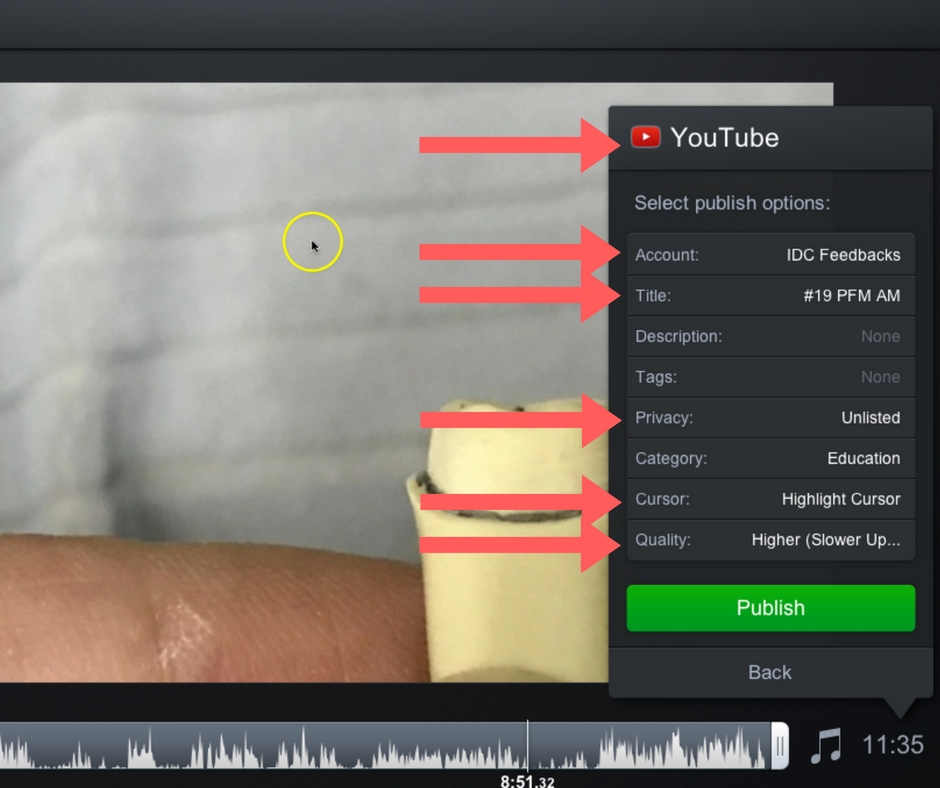
Always upload UNLISTED and at highest quality (settings will need to be set just once, the first time you do it)
Knowledge Base – This page has a list of videos you can include in your feedback post for students to review, so familiarize yourself with the videos available.
For creating the first draft for students with Knowledge Base videos, use this page.
For adding the YouTube video link and notifying the student, find the post that has been created here.
Processing
1. Pre-recording
When a new feedback comes in, it’ll show up under the ‘UNPROCESSED’ column of the Bench Test Feedback Trello board.
2. Recording
Use Screencast-O-Matic at 480P and upload unlisted to Youtube at highest quality. Look above at Software/Sites needed for more info.
After recording, drag the card to the “Recorded” Column in Trello.
3. Processing step 1
Adding KB videos and letting system know who this belongs to by selecting user.
Unfortunately the ‘Post Another’ button that shows after you submit will take you to an error page.
4. Processing Step 2
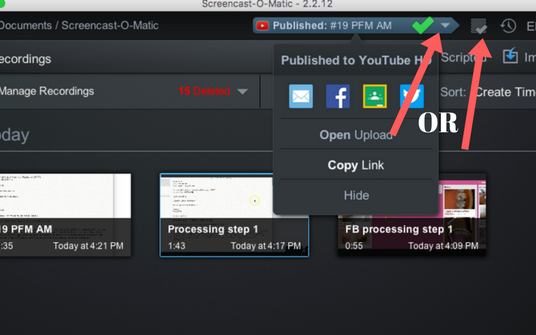
What you’ve processed in the step above will show up here. Now we need to add the YT video link and publish the post.
Find the YT video link on Screencast-O-Matic’s app like this
5. Final Step
Move the card on Trello to ‘Completed’ column, and that’s it!
Comments
Sometimes students will ask questions and it will show up as comments to posts. If so go and answer them. Depending on how individual the question was, if it’s a question that would benefit from being answered in the forum, answer it there and drop a link to the forum post as a comment please.