
If you would want to share a link to our Owncloud files, just copy the link that you can find on your URL box .
To understand better, read the information below:
When you want to share a link to a certain file under Owndcloud, usually you would have to click this:  and then an option to share the link would appear on the left side of your screen (which would look like this)
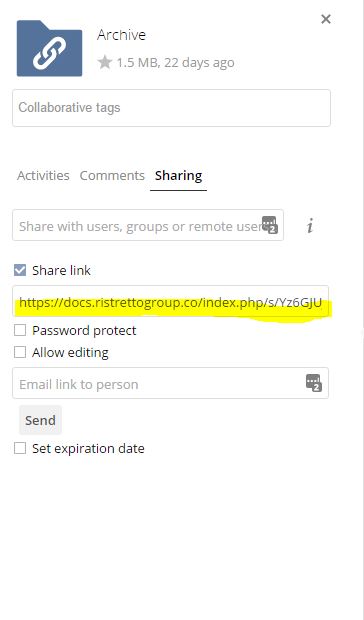
Instead of doing that, it is best that we copy the link from the URL box on top right away.
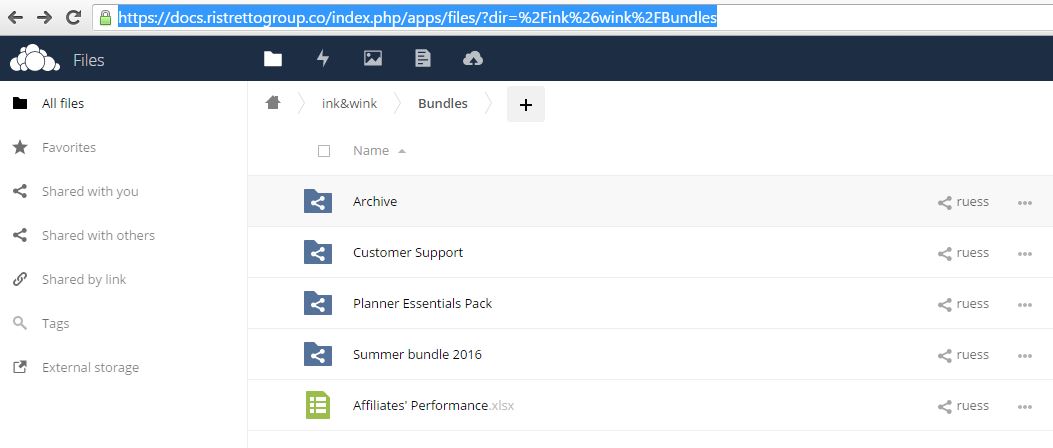
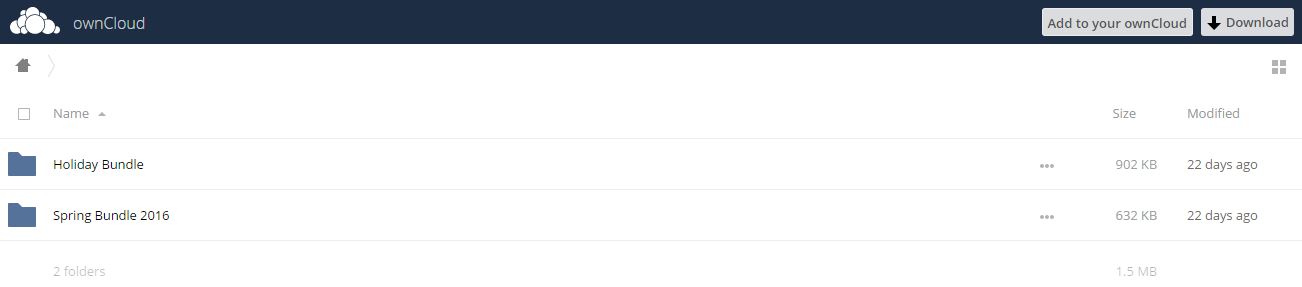
Reason : When you share Owncloud links using the first option stated above, you would not be given a reference on where the shared file is located. It would simply look like this:
However when you share the file by copying the link that you can see from the URL box. You would be able to see a reference and you will know where the shared file is exactly located, like this:
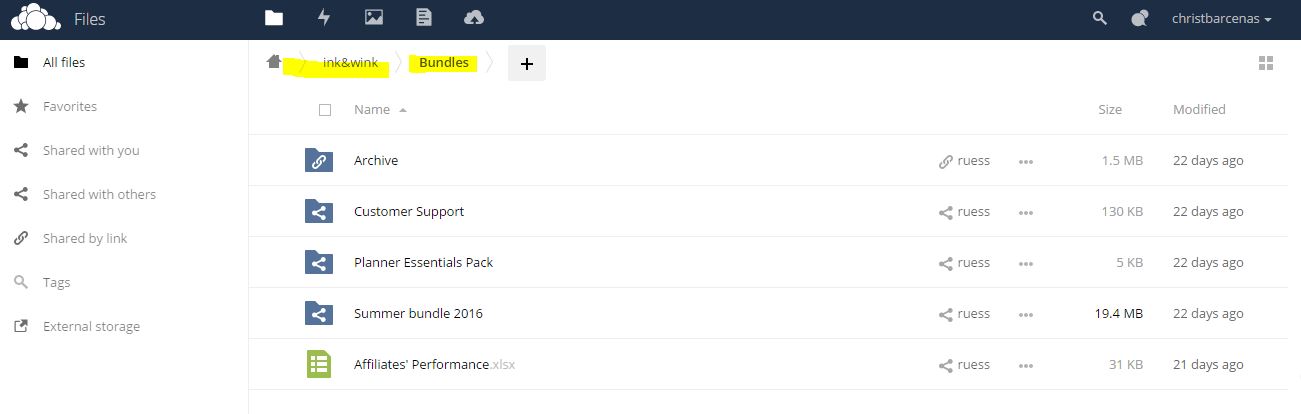
This is helpful especially when you are sharing document which need to be reviewed by one of our teammates. For example, I have made a document that Alyssa needs to review. If I share the link to the document using the first option, the only thing that she can do from her end is to download the document so she can make changes to it and the changes she will be making would not be synced right away because they would be done locally. Now, if I share the link to Alyssa by simply copying the link from the URL box, she would know the exact file location and so she can navigate it from her local Owncloud folder and make changes to the document which will be synced right away.
Here is a screencast for a more elaborate explanation.