
NOTE: Please Try to Update Membership Requests ASAP (within a few hours of receiving!
Before going through the process of renewing memberships, please understand that ALL of our courses are renewable as long as we can confirm that the client who sent in the request has not been accepted to any program yet.
Another important note to remember is to not touch the bench test feedback and power up membership levels as these can only be renewed if the client would pay for them again.
process
When we receive membership renewal request, we get this email.
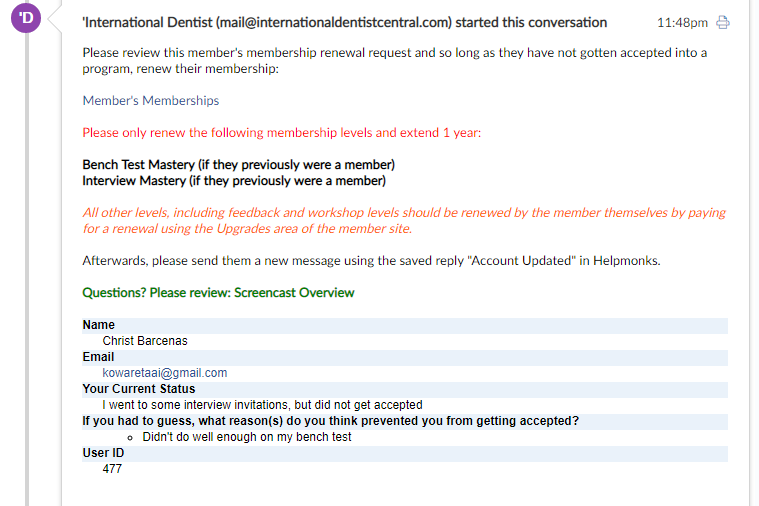
- First thing to do is to verify if the client has already been accepted somewhere. We check them via CRM (Active Campaign) first, followed by our Client Success Report and then lastly, Facebook.With Active Campaign just copy their email address search for them through our Contacts.
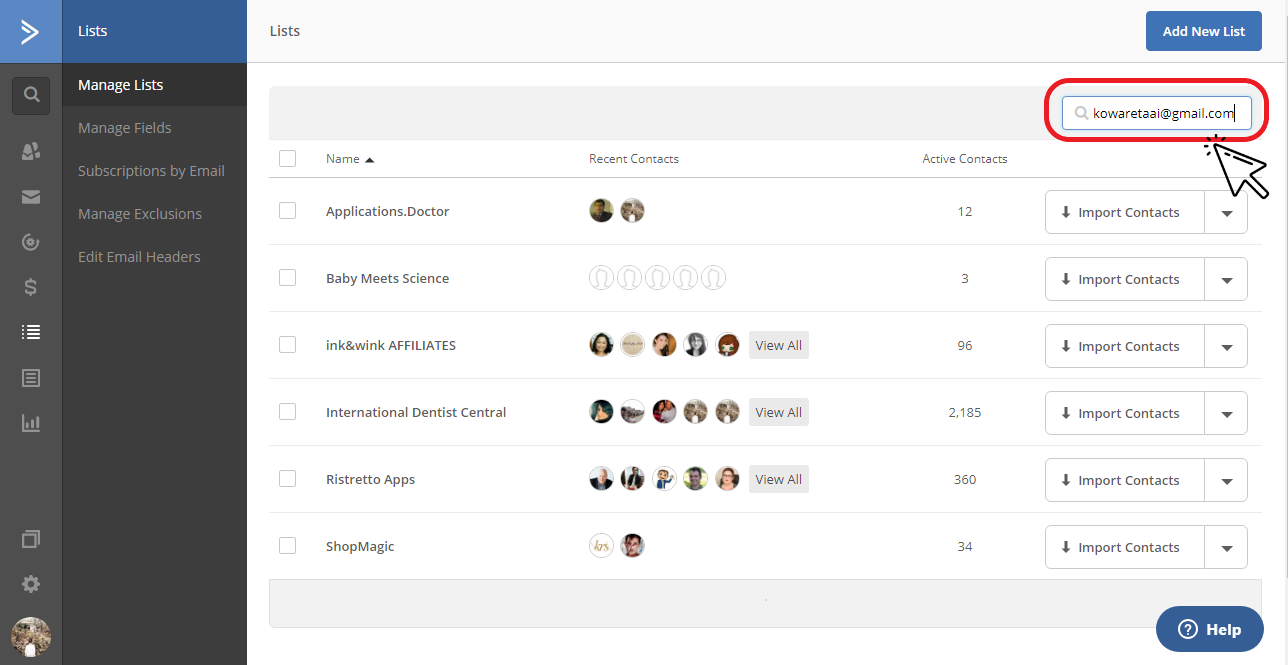
Look at the tags and notes on their CRM profile to verify if they have not yet been accepted.
For our Client Success Report, look for them using their email address. To do this, simply hit the Ctrl + F keys for Windows and Command + F for Mac. Type in their email on the search bar
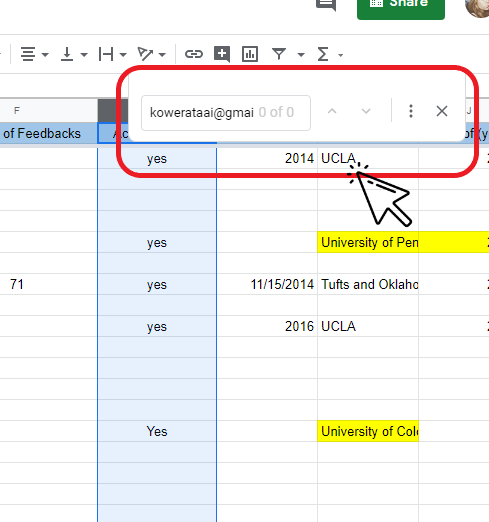
and check the Acceptance column (as highlighted in blue above) and see if they’ve already been accepted. Yes for accepted and No or blank for not accepted.
With Facebook, try looking for them first using their email address. If there are no results found, try typing their full name and see if you can find any profile that would match. Look for any proof of acceptance.
Remember to be always skeptical when doing this and never assume someone’s acceptance unless there is an obvious proof.
- Once we’ve verified that the client has not yet been accepted, we can now work on processing their renewal request. To do that, click the “Member’s Memberships” link on the email we’ve received earlier.
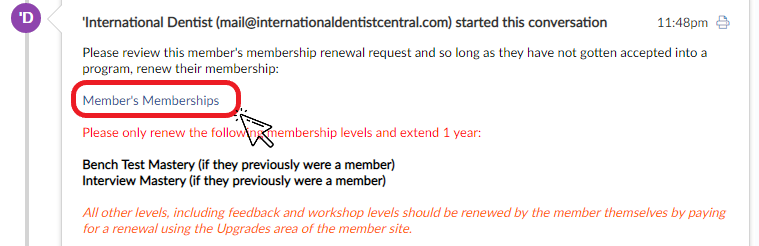
And we will be taken to their member profile on our member site.
On the member site there are only two components that we need to update in the member profile: the boxes under User Enrolled in Courses
and the membership levels under Wishlist Member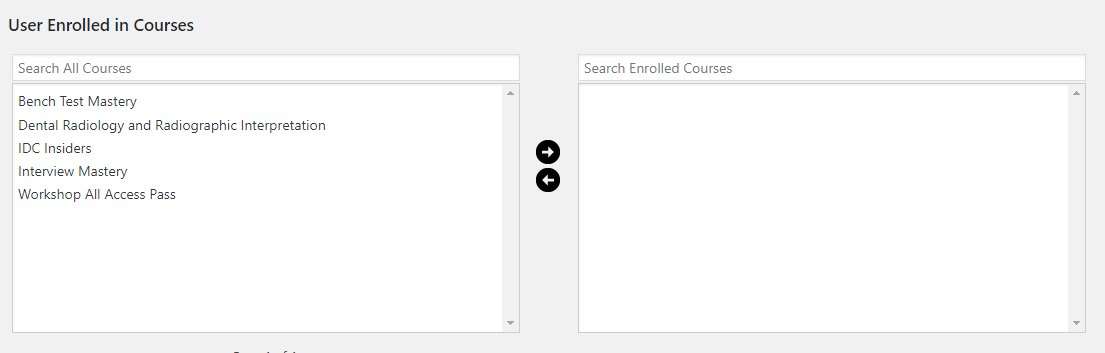
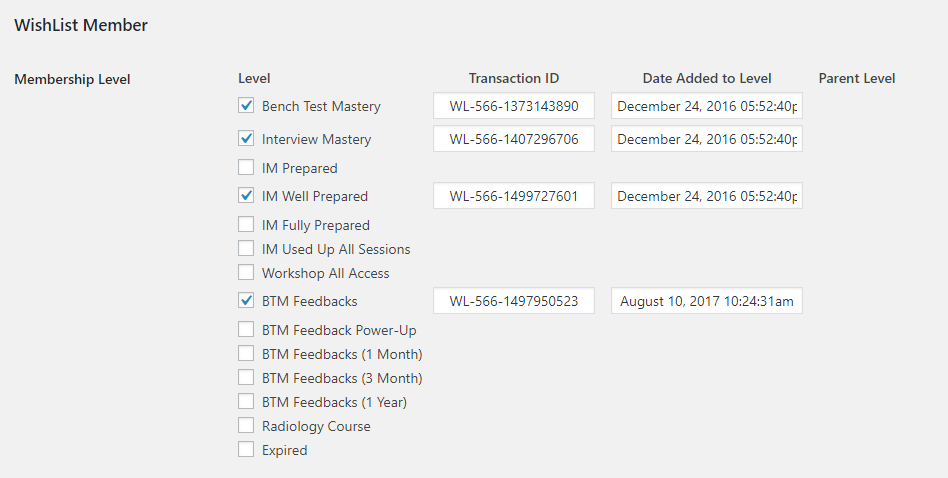
- The sample client is a member of both bench test mastery and interview mastery (well-prepared) so we only have to renew these courses. To do so, just move their registered courses to the right box under User Enrolled in Courses.
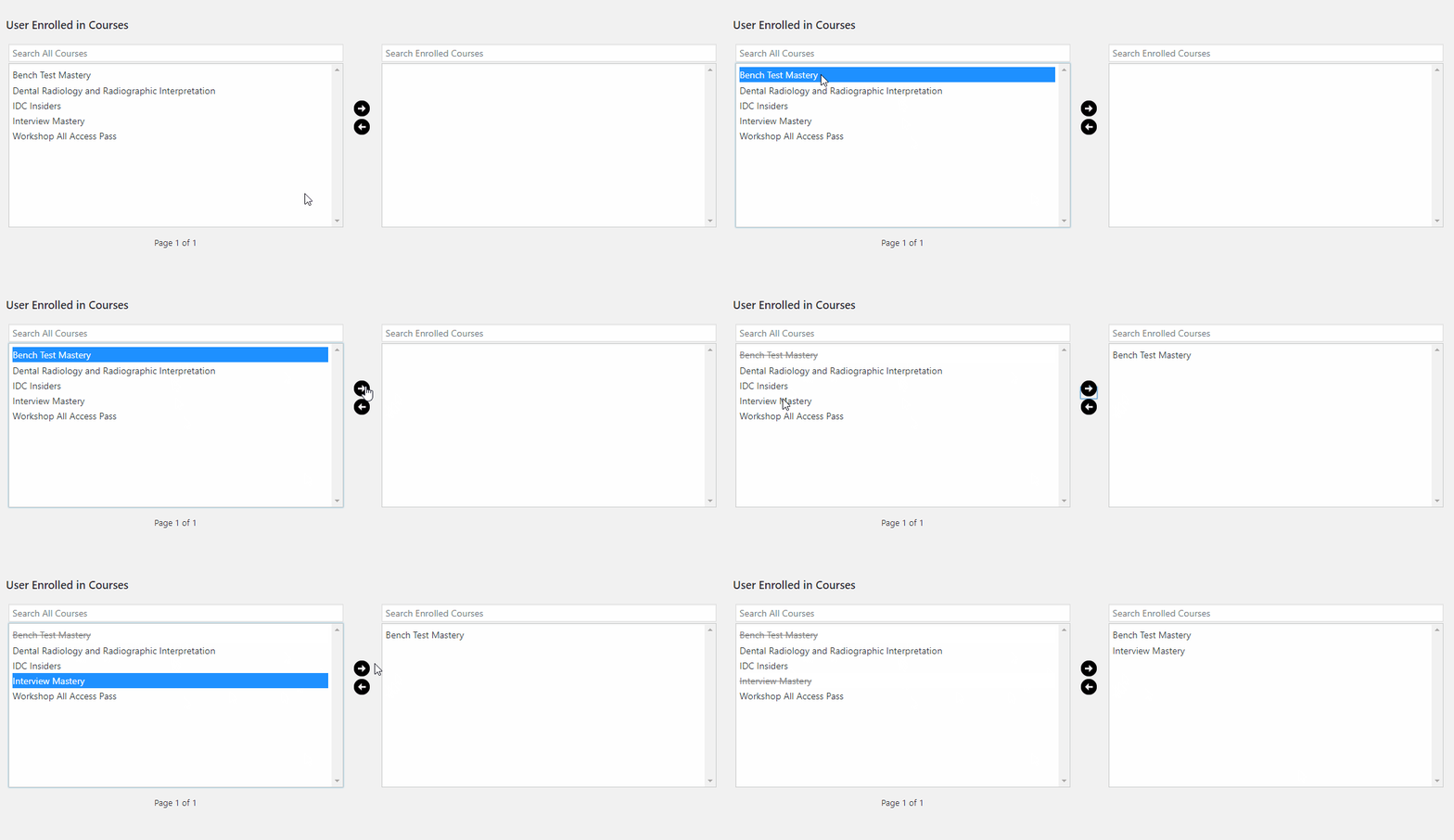
Only move the courses they signed up for.
- The next component we need to work on is their Membership Levels. The checked boxes will indicate what courses they signed up for. As for this sample client, they are a registered bench test and interview mastery member. On the second to the last column, you’ll see their sign up date under Date Added to Level.
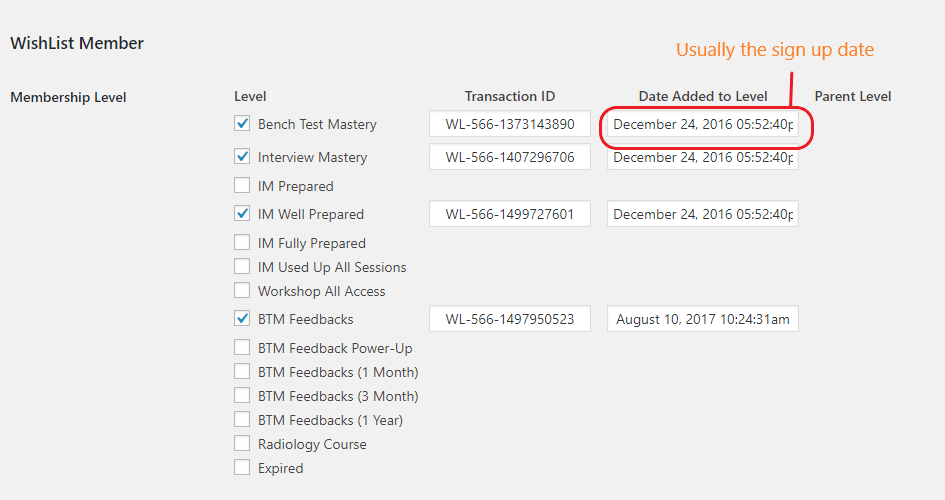 For this example, the client signed up on December 2016 so their membership would expire on December 2017 (1 year after). To renew this, simply update the year and change it to the current year when you’ve received their renewal request.
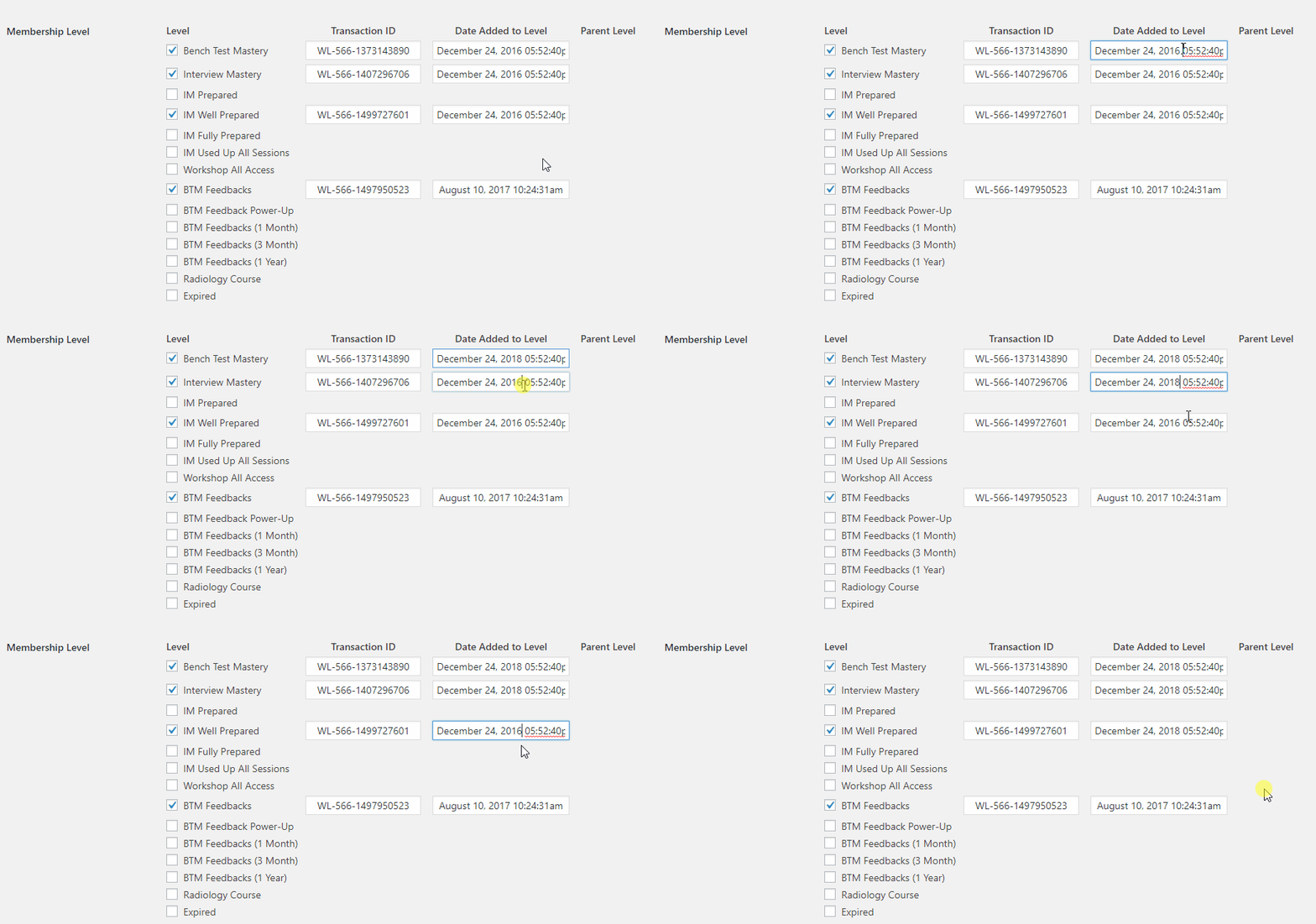
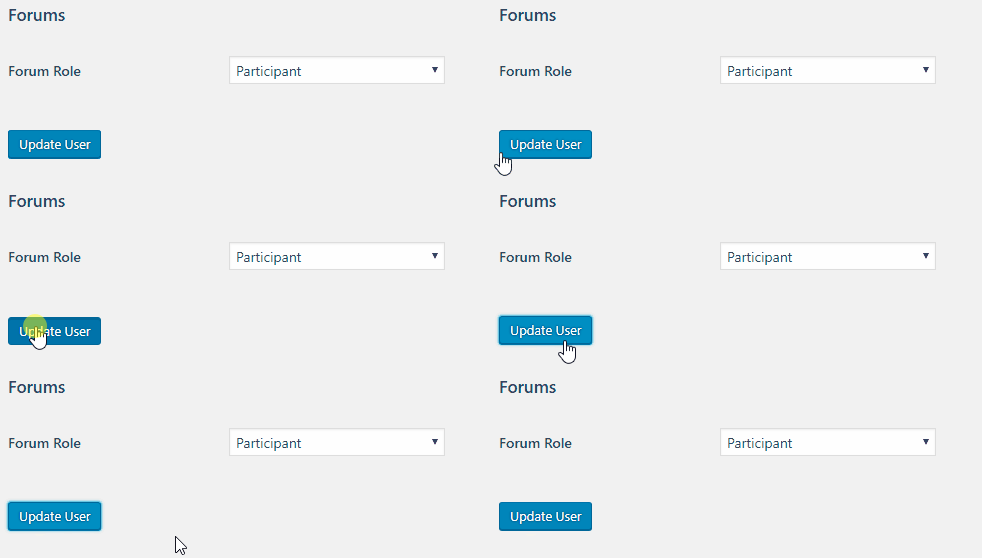
On the example above, after changing the year, the new course expiration for this client would be on December 2019. - Now you have to save the changes you have made. To do this, simply scroll down to the bottom of the user profile page and click on the Update User button.
letting the client know
After processing their request, we would have to inform the client that we have received and processed their request.
E-mail Template (This is also saved as Account Updated under ‘Saved Replies’ on Helpmonks)
Subject: Account Updated
Hi [first name],
Thanks for helping us update your profile today! We’ve updated your account at members.internationaldentistcentral.com.
Please try logging in and let us know if you have any trouble with your access to the courses you signed up for.
Look forward to seeing you soon in the member’s area!
~Kevin
You can sign it off as Kevin.