PURPOSE:
The purpose of this standard operating procedure is to set a specific guideline in making featured images for IDC’s Facebook posts (both IDC’s articles and external links).
important
As of the moment, we do not have to create featured images for external articles (articles that were not written by us) since Facebook no longer allows users to edit images in posts starting in 2017.
However, we are keeping this operating procedures for instances when you have to create featured images for IDC articles or if you plan to upload FB images.
PROCEDURES:
- Take note of the following information:
- Use these fonts: Lobster Two Italic, Museo and Nexa
- The default font color should be white (color code: #FFFFFF) but if the background image used is too light then you can use dark gray (color code: #A9A9A9) or dark blue (color code: #194260) to make the words visible and readable.
- The featured image’s width should be 470px and the height should be 246px (landscape orientation) for the FB external articles.
- The software used to create this guideline is Photoshop CS6. You can use any version of Photoshop or any other software/programs as long as you can add texts and create the base canvas size to make sure that the image resolution is correct.
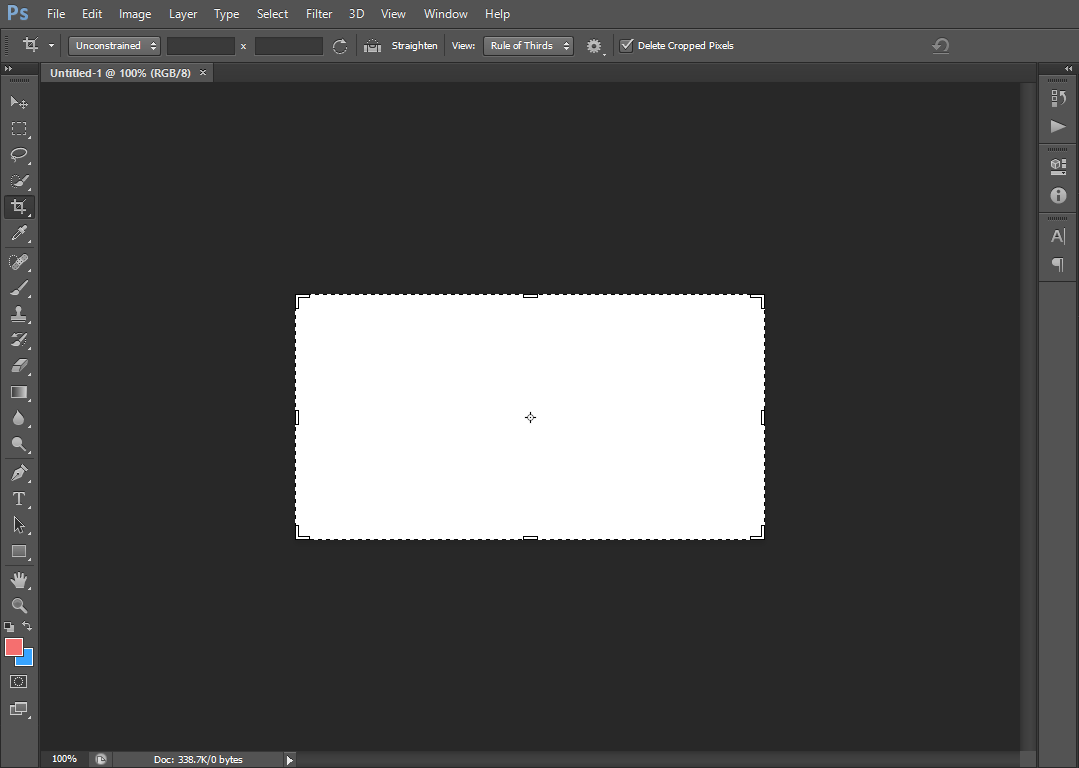
- Using Photoshop : Create a new blank canvas on Photoshop width should be 470px and the height should be 246px.
- Choose a relevant, eye-catching image and paste it on the blank canvas you just created. Make sure that you adjust the image so it fits the blank canvas perfectly.
3.1. You can find high quality images from the Stock Photos folder on Google Drive You can also google free stock photos.Our favorite Free Stock Photos site is Unsplash
3.2. When you use images with dentists on it, make sure to find images with dentists of different race that is not American, preferably Indian, since our clients are foreign dentists.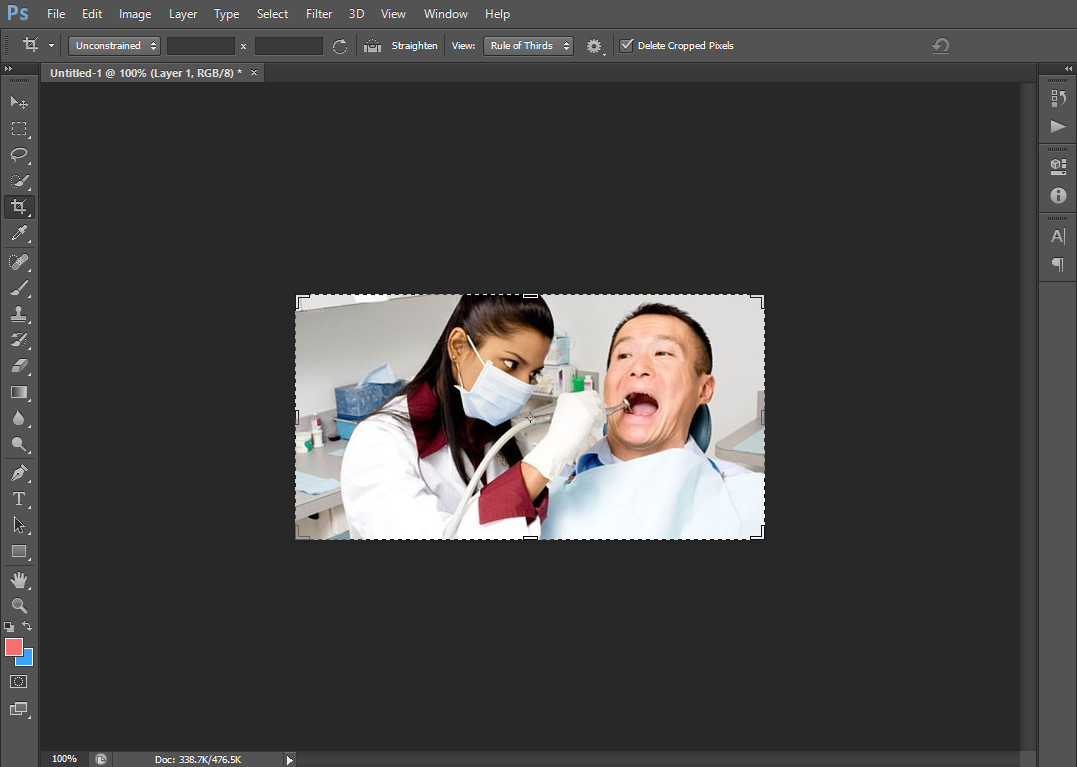
- Optional procedure: Add a gray gradient using the gradient tool on top of the image you pasted on your blank canvas to make the words you will be typing later more readable and visible. This is recommended if you have a very light background image.4.1. Click the gradient tool and choose neutral density.
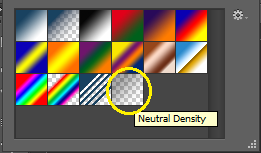 4.2. After selecting the gradient tool, click the top part of the side where you want to add your text to and drag it down in a slanting position.
- Add the title of the post on the image by using the Text tool and use the fonts stated on Procedure #1.
5.1. Use the font Lobster if you want to emphasize a certain text.
5.2. Add the text only on the left or right side of the image.
5.3. You can use all three fonts or you can also select two fonts.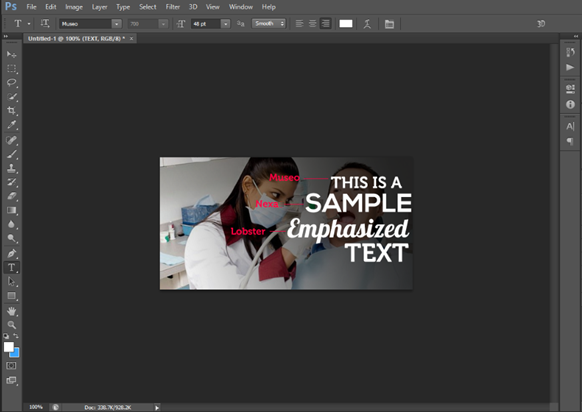
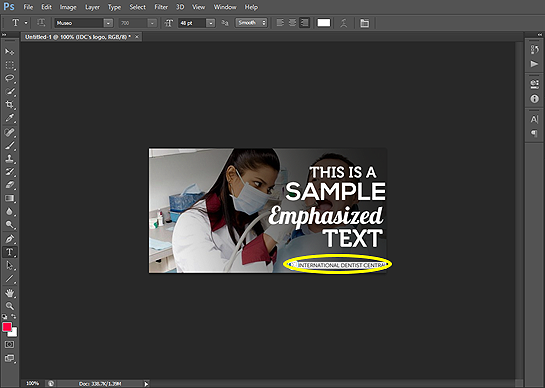
- Add IDC’s logo on the bottom right part of the image. Skip this step if you are creating featured images for external blogs.
6.1. Use this IDC logo, you can also use this PSD.
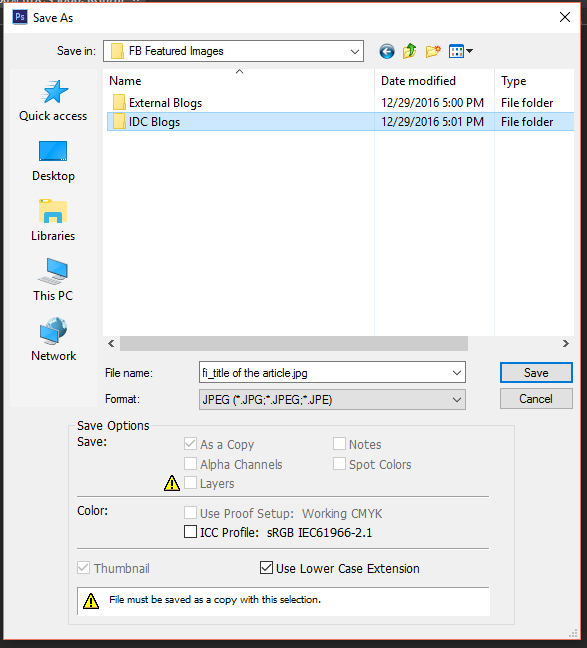
- Save the image as JPEG to the FB Featured Images folder on Goolge Drive for our blog articles. File name should be “fi_the title of the article”.