PURPOSE:
The purpose of this standard operating procedure is to establish a neat and uniform procedure for posting relevant and informative IDC’s articles on IDC’s facebook page without losing the sense of formality.
PROCEDURE:
- Take note of the programs to be used before you start posting on facebook page.
1.1. Buffer – for scheduling and adding posts to IDC’s facebook page.
1.2. Campaign URL Builder– to easily add campaign parameters to URLs so you can track Custom Campaigns in Google Analytics.
1.3. International Dentist Central – source of the articles you will be posting.
1.4. UTM Codes for Link Sharing Spreadsheet -Use this spreadsheet as a guide on what specific codes to use for the campaign URL builder.
- Copy the link of the article from IDC’s site that you would want to share.
- Go to the Campaign URL Builder and paste the link so you can track the insights of the article that you are sharing. To use the Campaign URL builder, make sure that you fill up the form below.
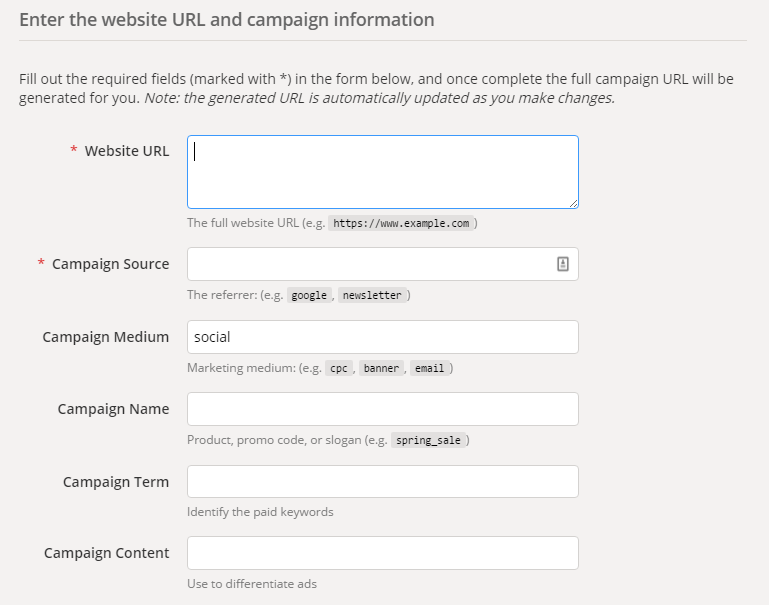
3.1. Follow the guide below to be guided on how to fill up the URL builder form or you can check this article. You must remember to copy past the exact term from below.
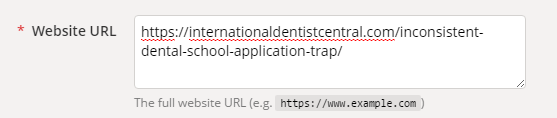
Website URL: This is where you paste the IDC link that you would want to share.
Campaign Source:
- If we’re sharing through our newsletter, type in newsletter
- If we’re sharing through FB, type in facebook

Campaign Medium: No need to fill out this form if the utm source is newsletter, if you’re sharing through Facebook, understand what channel will you be using.
For example, if you’re sharing it to FB groups, the medium should be group, if it’s on our page, the medium should be page and if you’re sharing it through Alyssa Marshall Crew’s profile, the medium to be used is profile.

Campaign Name:
- success story (when sharing a success story. It’s not success stories)
- blog (when sharing a misc article. It’s not article or blog post)
- free consult (when sharing the link to our free consult session)
- (add more as needed)

You can leave campaign term and content. You do not have to type anything under it.
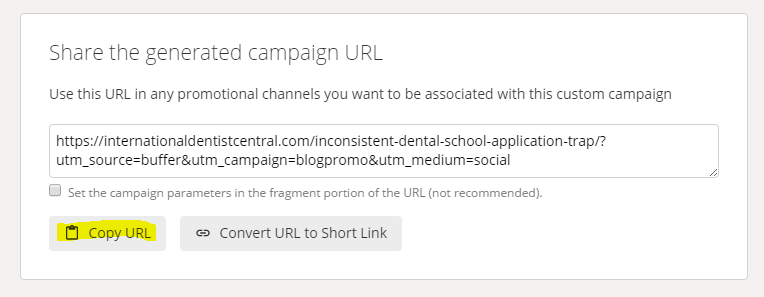
3.2. After filling out the form, all that’s left to do is to copy the generated URL (which you can find under the form). Use that link and post it on Buffer queue.
- Go to Buffer, sign in as [email protected] with Lastpass.
4.1. Paste the link that you copied from the Campaign URL Builder and paste it on the “What do you want to share?” field.

4.2. Add the caption, change the featured image (follow the style guide of our facebook featured images here) Remember to add captions that are catchy without losing formality.
Important Note: Starting in December 2017, there is no need to change the featured image since Facebook has removed this, just change the caption.
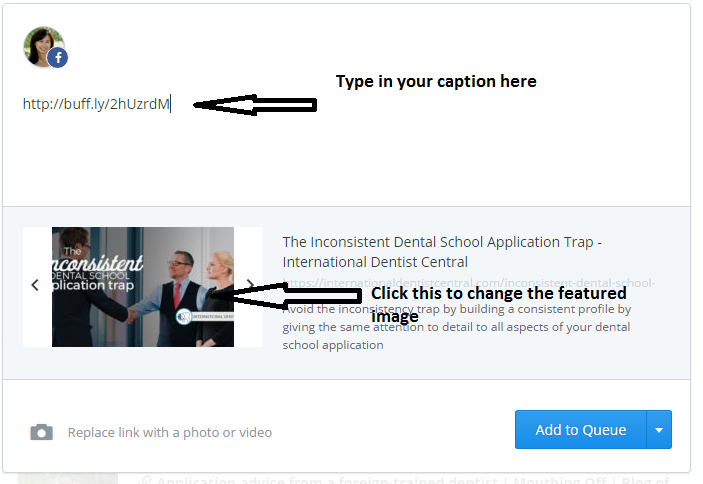
- Once you are satisfied with the captions and the featured image is set, you can now add the article to your buffer queue. By practice, it is recommended that you schedule the post instead of just hitting on the “Add to Queue” button.
5.1. You can schedule the post by clicking the little arrow beside the “Add to Queue” button.
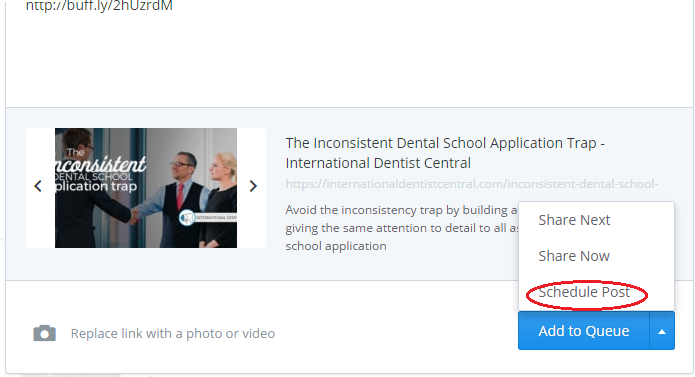
5.2. Choose “Schedule Post” and set the date and time.
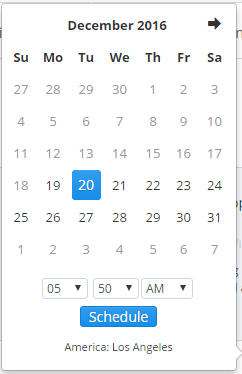
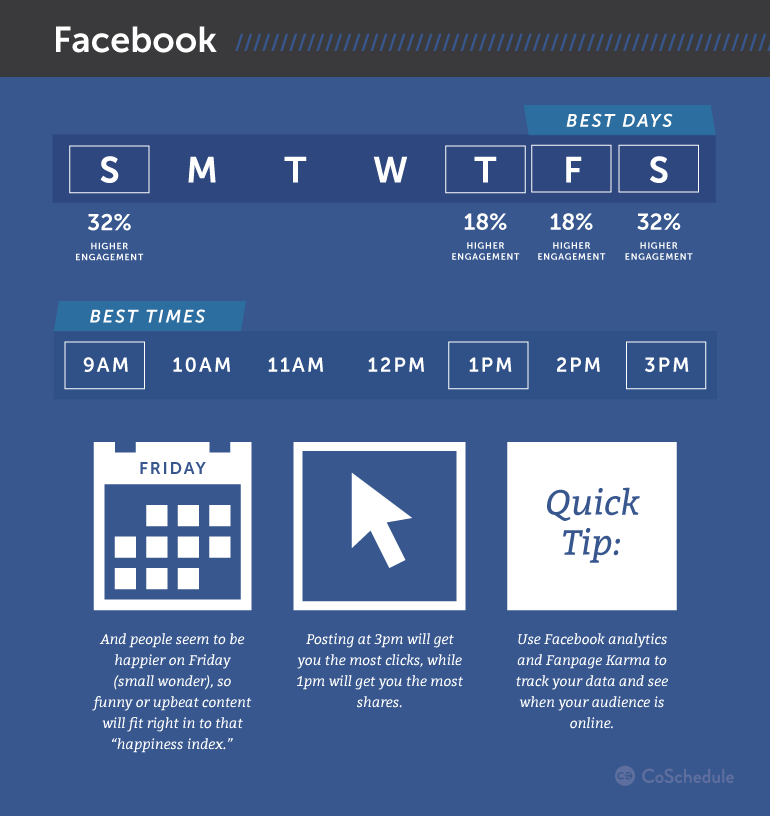
Refer to the image below to know the best dates and time for your postings.